Copying the Psyche network animation
This is an attempt to copy Nous Research's Psyche network animation.
I used Gemini 3 to write the shader based on a screenshot of the original animation (see screenshot below).
It kind of resembles the original, but the pixelated look and the lighting need some tweaking. It matches the original with:
1pixel spacing = 2
2light z = 1.5
3ambient light = 0.01
4diffuse light = 0.2
You need to set the settings above to see the resemblance! I just liked the current settings more.
hide controls
Controls
Screenshot of the original animation:
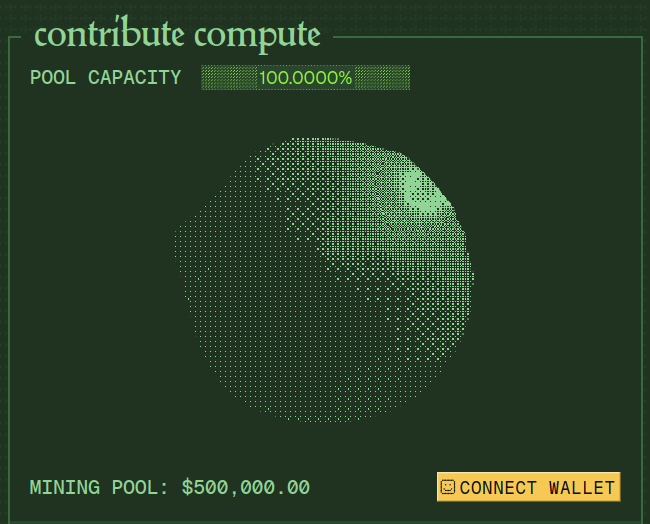
I think it's a sphere with some kind of noise applied to its surface. It also has a pixelated look to it, so there must be some kind of quantization applied to the colors.
I don't know how the pixelated look was achieved, it could be a texture sampled based on color intensity, or it could also be a dithering pattern.
I went with the dithering approach here.
So this is how the big picture looks like in my case:
-
Ray march from the camera (set up outside the screen, positive Z) into the scene along a ray direction (from screen pixels into the scene, negative Z).
-
Use a sphere SDF to find the distance of a point to our sphere. Apply noise to morph the sphere, and add use mouse coordinates to apply a Gaussian function to the SDF to create a bump in the sphere.
-
Shade the point on the sphere one color, and points outside of the sphere another color. Use surface normals for basic lighting.
Of course, the devil is in the details, and that is described below 👇.
Finding the sphere (ray marching)
We must be figure out which pixels are part of the sphere in order to shade them a different color than the background. This is a 3d scene, and we use ray marching to find the sphere.
Imagine the canvas as a matrix of pixels. There is a 'camera' set up before the canvas, looking into the scene inside the canvas. You can imagine that you are the camera, looking into a world through a window (the canvas).
We shoot a ray from the camera through each pixel on the canvas into the scene. For every ray, we determine its distance from the sphere along the ray direction. If the distance is smaller than a threshold, we consider the pixel to be on the sphere. If it's not, we move (march) along the ray in the same direction by the distance we found.
This process is repeated a certain number of iterations until the sphere is hit or the ray goes too far (more than a max distance). If the sphere is hit, the pixel gets the sphere color, otherwise it gets the background color.
This can get tricky with "grazing rays" that only graze the surface of the sphere, because these rays converge much slower than rays that hit the sphere head on (see Zeno's paradox). So if the number of iterations is small, the edges of the sphere will look jagged, but if it's too large, the algorithm will be too slow and fps might suffer for some rays.
Here's the basic ray marching function:
1float march(vec3 ro, vec3 rd) {
2    float t = 0.0;
3
4    for (int i = 0; i < 64; i++) {
5        vec3 p = ro + rd * t;
6        float d = sphereSDF(p, 1.0); // 1.0 is the radius of the sphere at 0,0,0
7
8        if (d < 0.001) {
9            return t;
10        }
11
12        // early return if the ray went through the sphere
13        if (t > 10.0) {
14            break;
15        }
16
17        t += d;
18    }
19
20    return -1.0;
21}
Ok, but how do we know where the sphere is? (SDFs)
We know by using a signed distance function (SDF). This function computes the distance of a point to the sphere.
If the distance is positive, the point is outside the sphere, if it's negative, it's inside it. We say that a point is on the sphere if the distance is close to 0.
The SDF for a sphere is pretty simple:
1// Basic signed distance function for a sphere
2float sphereSDF(vec3 p, float r) {
3    return length(p) - r;
4}
This gets a bit more complicated because we want to morph the sphere.
We do this by adding noise to the SDF, which will deform the sphere in interesting ways. The time variable can be used to generate different noise at different points in time. I've added in the position vector p too, so noise is different at different points in space.
There are some magic numbers here, I just played around until I found something that looked good. Also, notice that there are 2 layers of noise, the second layer having a lower amplitude and a higher frequency. Layering noise creates more interesting patterns.
1// Basic signed distance function for a sphere
2float sphereSDF(vec3 p, float r) {
3    // Base sphere distance
4    float d = length(p) - r;
5
6    // Add noise displacement animated with time
7    float noiseVal = noise(p * 2.0 + u_time);
8    noiseVal += noise(p * 4.0 + u_time * 0.3) * 0.5;
9
10    // Apply noise displacement to surface
11    d += noiseVal * 0.18;
12
13    return d;
14}
After this, mouse interaction is added by creating a mouse ray (just like the camera rays), computing the distance from the point p to the mouse ray, and applying a displacement to the SDF based on that distance.
1float sphereSDF(vec3 p, float r) {
2
3  // ... previous code ...
4
5  // Calculate distance from point p to the mouse ray
6  vec3 toPoint = p - mouseRayOrigin;
7  float t = dot(toPoint, mouseRayDir);
8  vec3 closestPointOnRay = mouseRayOrigin + mouseRayDir * t;
9  float distToRay = length(p - closestPointOnRay);
10
11  // Apply spike displacement based on proximity to mouse ray
12  float spike = exp(-distToRay * distToRay * 15.0) * 0.2;  // Gaussian falloff
13  d -= spike;  // negative = push outward (spike)
14
15  return d;
16}
With this, we have a morphing sphere! Now onto the lighting.
Basic lighting
Once we know which points are on the sphere and which are outside of it, getting a basic lighting setup is not that hard. Without this, the sphere would just be a flat, colored morphing blob.
First we need to compute the normal at a point on the sphere.
Since we have an SDF for the sphere, not a mesh, we use finite differences to approximate the normal at a point on the sphere.
For any point on the sphere, we compute points nudged by small amounts in the x, y and z directions, forwards and backwards from the point on the sphere.
Note that this is NOT an efficient method since it requires 6 SDF evaluations per normal calculation.
This will give us 6 points in total, 2 for each dimension. The lines connecting these points on the x,y,z axes will form a small star-like shape, all intersecting at the sphere point.
The differences of the SDF at these points will give us the normal vector at the sphere point. Normalize the vector to get a unit vector suitable for lighting calculations.
Something like this:
1vec3 getNormal(vec3 p) {
2    float h = 0.001;
3    float r = 1.0;
4    vec3 offx = vec3(h, 0.0, 0.0);
5    vec3 offy = vec3(0.0, h, 0.0);
6    vec3 offz = vec3(0.0, 0.0, h);
7    vec3 n = vec3(
8        sphereSDF(p + offx, r) - sphereSDF(p - offx, r),
9        sphereSDF(p + offy, r) - sphereSDF(p - offy, r),
10        sphereSDF(p + offz, r) - sphereSDF(p - offz, r)
11    );
12    return normalize(n);
13}
This demo visualizes the normal calculation with central differences:
- Yellow Point: The point P on the sphere surface.
- Red/Green/Blue markers: The offset points (P +/- epsilon) along the X, Y, and Z axes.
- Cyan Vector: The resulting normal vector derived from the differences in distance values at those sample points.
For each axis, checking the distance from the sphere at P+epsilon and P-epsilon tells us how "fast" the distance field is changing in that direction (the gradient). Combining these three gradients gives us the surface normal.
Now we have the sphere point and the normal at that point. All we need now is a light position! The light position can be given arbitrarily, but it's usually a good idea to have it outside of the sphere.
We subtract the light position from the sphere point to get a vector pointing from the sphere point to the light. Normalize to get a unit vector again.
The last step is to compute the dot product of the normal and the light direction. This will give us a value between -1 and 1, where 1 is when the light is directly shining on the sphere point, and -1 is when the light is directly behind the sphere point. We clamp this value between 0 and 1, and then use it to scale (shade) the color of the sphere point.
The main loop contains the lighting code, before applying dithering:
1void main() {
2    // Normalize coordinates
3    vec2 uv = (gl_FragCoord.xy - 0.5 * u_resolution) / u_resolution.y;
4
5    // Camera setup
6    vec3 ro = vec3(0.0, 0.0, 3.0);  // ray origin
7    vec3 rd = normalize(vec3(uv, -1.0));  // ray direction
8
9    // Raymarch
10    float t = march(ro, rd);
11
12    // Color
13    vec3 color = bgColor;
14
15    // Pixel spacing control
16    float spacing = u_pixelSpacing;
17    spacing = max(spacing, 1.0);
18
19    bool skipPixel = mod(floor(gl_FragCoord.x), spacing) > 0.1 ||
20                     mod(floor(gl_FragCoord.y), spacing) > 0.1;
21
22    if (t > 0.0 && !skipPixel) {
23        // Hit the sphere - calculate lighting
24        vec3 p = ro + rd * t;  // hit position
25        vec3 normal = getNormal(p);
26
27        // Light from uniforms (adjustable)
28        vec3 lightPos = vec3(u_lightPosX, u_lightPosY, u_lightPosZ);
29        vec3 lightDir = normalize(lightPos - p);
30
31        // Diffuse lighting
32        float diffuse = max(dot(normal, lightDir), 0.0);
33
34        // Adjustable ambient + diffuse
35        float lighting = u_ambientStrength + diffuse * u_diffuseStrength;
36
37        // Apply Bayer dithering
38        float dithered = bayerDither8x8(gl_FragCoord.xy, lighting);
39
40        // Set blob color
41        color = sphereBaseColor * dithered;
42    }
43
44    gl_FragColor = vec4(color, 1.0);
45}
Dithering is used to achieve a pixelated look, I used an 8x8 Bayer matrix for this.
So just to recap:
- Set up ray marching to march towards a surface.
- Use an SDF to compute the distance to the sphere surface, apply noise and mouse interaction to the SDF to create a morphing sphere. Use this SDF in the ray marching loop.
- Once a surface point is known, apply lighting to it using approximated surface normals.
- Apply dithering to the lighting to create a pixelated look.
Try experimenting around with the parameters in the UI, and see what you can come up with!
I hope you enjoyed this article!